Basic command-line commands
Use a terminal to list files, change directories, and create, rename or remove files and folders.
You can do these exercises in your terminal on Linux or macOS. On Windows, use WSL or Git Bash from Git for Windows.
Print, list and move around
echo hello world
whoami
pwd
ls
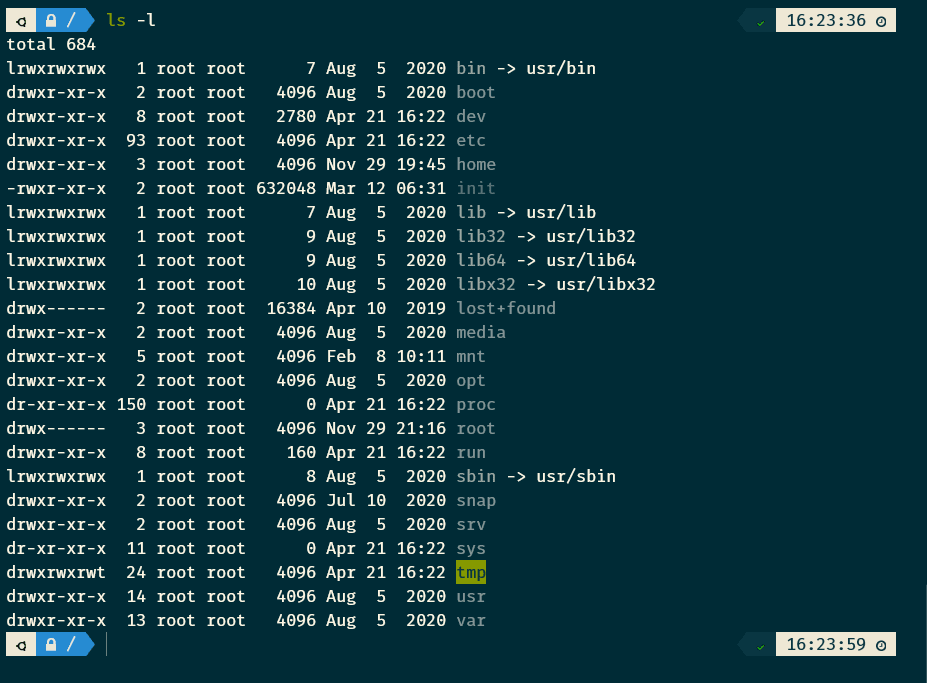
ls -la
echo prints the words, whoami prints your username, and pwd prints your current directory. ls lists its visible entries. Add -l for details and -a to include entries whose names start with a dot.
diagram
Anatomy of a command
Create a folder and a file
Start in a directory where you can create a new folder called cli-practice.
mkdir -p cli-practice/react
cd cli-practice
touch secret.txt
mv secret.txt open.txt
ls
mkdir -p creates the parent directory as needed. cd enters it, touch creates an empty file if the name is new, and mv renames it. The list should now include open.txt and react.
Clean up
rm -i open.txt
rmdir react
cd ..
rmdir cli-practice
Confirm when rm -i asks to remove the practice file. rmdir removes an empty directory. If you skipped the confirmation or created extra files, rmdir cli-practice will report that it is still full. See the GNU Coreutils manual for command options.